はじめにIntroduction
この度は弊社「applippli-key」のご利用、誠にありがとうございます。
ご利用の前に本製品についての利用規約をご一読の上、お進みください。
Thank you for choosing applippli-key.
Please read the terms of use for this product before proceeding.
本マニュアルについてAbout This Manual
- 掲載されているイメージ画像は予告なく変更される場合があります。Screenshots shown in this manual are subject to change without notice.
- 画面表示や操作手順は、ソフトウェアのバージョンによって異なる場合があります。Screen displays and procedures may vary depending on the software version.
- 当製品の仕様は予告なく変更されることがあります。Product specifications are subject to change without notice.
- 本マニュアルの内容は改善のために変更される場合があります。The contents of this manual may be updated for improvements.
- 本マニュアルの記載内容に基づいて発生した損害について、当社は一切の責任を負いません。操作は自己責任で行ってください。We accept no liability for any damages arising from the use of this manual. Operate at your own risk.
- 本マニュアルの無断転載・複製を禁じます。Unauthorized reproduction or copying of this manual is prohibited.
使用上の注意事項(必ずお読みください)Important Notes (Please Read)
Windows パスワードを忘れてしまった方は、Windows パスワードをリセットした後、本書 P10 記載の通りでお進みください。 If you use a PIN code and know your Windows password, follow the instructions on page 10 of this manual.
If you have forgotten your Windows password, reset it first and then proceed as described on page 10.
インストール・初期設定の注意事項Installation & Setup Notes
- applippli-key の OS 対応状況については公式サイトを参照してください。Refer to the official website for supported operating systems.
- 必要なソフトウェアとハードウェアについては、製品仕様を参照してください。Refer to the product specifications for required software and hardware.
- applippli-key をセットアップする PC の 管理者権限を持っている方が、インストール作業を行ってください。Installation must be performed by a user with administrator privileges on the PC.
- 管理者権限がない場合はインストールできません。Installation is not possible without administrator privileges.
- インストールを始める前に、すべてのプログラムを終了してください。Close all running programs before starting the installation.
- 常駐プログラムが動作していると、正しくインストールできない場合があります。Background (resident) programs may interfere with the installation.
- インストールや設定で問題が解決しない場合は、本マニュアルの最後に記載しているトラブルシューティングページのリンクをご活用ください。If issues persist after installation or setup, refer to the troubleshooting page link at the end of this manual.
ワンタイムパスワードアプリをダウンロードDownload the OTP Authenticator App
【iPhone 端末の場合】For iPhone
下記いずれかのアプリをインストールしてください。App Store で QR コードを読み取るか、アプリ名で検索してください。 Install one of the apps below. Search by name on the App Store or scan the QR code.
【Android 端末の場合】For Android
下記いずれかのアプリをインストールしてください。Google Play で QR コードを読み取るか、アプリ名で検索してください。 Install one of the apps below. Search by name on Google Play or scan the QR code.
applippli-key インストーラーのダウンロードDownload the applippli-key Installer
- 1マイページにログインします。Log in to My Page.
- 2上部メニューバーの [重要通知] を開きます。Open [Important Notices] from the top menu bar.
- 3「applippli-key ご利用のご案内」の通知を開きます。Open the notification titled "applippli-key Usage Guide."
- 4ご案内最下部のインストーラーダウンロードリンクをクリックし、ダウンロードします。Click the installer download link at the bottom of the notice to download it.
applippli-key のインストールInstalling applippli-key
- 1applippli-key のインストーラーをダブルクリックします。Double-click the applippli-key installer.
- 2自己解凍画面が出ますので指示にしたがってお進みください。自己解凍が終了すると、applippli-key インストール画面が表示されます。Follow the self-extraction prompts. The applippli-key installation screen will appear once extraction is complete.
- 3言語の選択画面が表示されたら、一覧からご希望の言語を選択して [OK] をクリックします。When the language selection screen appears, choose your preferred language and click [OK].
- 4セットアップ開始画面になったら、画面右下の [次へ] ボタンをクリックします。On the setup start screen, click [Next] at the bottom right.
- 5当製品の使用許諾書をご確認の上、「同意する」にチェックを入れ、[次へ] をクリックします。Read the license agreement, check "I agree," and click [Next].
- 6スタートメニューフォルダーの指定画面は、そのまま [次へ] をクリックします。On the Start Menu folder screen, click [Next] to proceed with the default.
- 7デスクトップ上にアイコンを置く場合は、「デスクトップ上にアイコンを作成する」にチェックを入れ、[次へ] をクリックします。To add a desktop icon, check "Create a desktop icon" and click [Next].
- 8指定項目を確認し、[インストール] をクリックすると、applippli-key のインストールが開始されます。Review the settings and click [Install] to begin installation.
- 9[完了] をクリックします。applippli-key 設定画面が開くので、次ページを参照し、設定をします。Click [Finish]. The applippli-key settings screen will open — refer to the next section to complete setup.
緊急ログオンの設定Emergency Logon Setup
緊急ログオンは、スマートフォンを忘れた場合などに「ワンタイムパスワード」を解除して、一時的に Windows パスワードを使用してログインできる仕組みです。 Emergency Logon allows you to temporarily bypass the OTP requirement and log in with your Windows password — for example, when you have forgotten your smartphone.
- 1
質問をプルダウンより選択し、右側の枠に回答を入力します。
※ 半角英数字のみで入力してください。 Select a security question from the drop-down and enter your answer in the field on the right.
※ Use half-width alphanumeric characters only. -
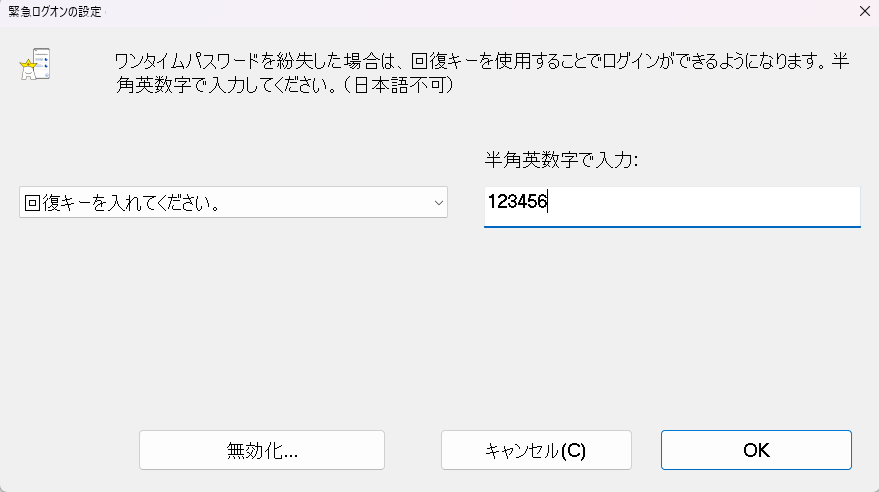
- 2 入力完了後、[OK] をクリックします。 After entering your answer, click [OK].
アクティベーションキーの登録Activation Key Registration
- 1 applippli-key を開き、画面左下の 「アクティベート」 をクリックします。 Open applippli-key and click "Activate" at the bottom left of the screen.
- 2
「applippli-key アクティベート」の画面が表示されたら、アクティベーションキーを枠内に入力します。入力が完了したら [OK] をクリックします。
※ アクティベーションキーは、マイページよりご確認いただけます。
(マイページ → [契約状況一覧] → 契約中の applippli-key [詳細] → ユーザー数 [詳細])
※ アクティベーションキーはコピー・貼り付けが可能です。 When the activation screen appears, enter your activation key and click [OK].
※ Your activation key can be found in My Page.
(My Page → [Contract List] → applippli-key [Details] → Users [Details])
※ You can copy and paste the activation key. - 3 アクティベーション完了のメッセージが表示されたら [OK] をクリックして閉じます。 When the activation success message appears, click [OK] to close.
ワンタイムパスワードの設定OTP Setup
- 1 [ワンタイムパスワードの設定] をクリックします。 Click [OTP Setup].
- 2
[QRコード表示] をクリックします。ブラウザが起動して QR コードが表示されます。表示された QR コードをワンタイムパスワードアプリの QR コード読取機能を使用してスキャンしてください。
※ スマートフォン標準のカメラでは読み取りできません。 Click [Show QR Code]. A browser window will open displaying a QR code. Scan it with your OTP authenticator app.
※ The device's default camera cannot be used to scan. - 3 通常 PC にログインするときの Windows パスワードを入力します。入力後、[ワンタイムパスワードの設定] をクリックして設定を完了します。 Enter your Windows login password, then click [Set OTP] to complete setup.
- 4 ワンタイムパスワード設定が完了すると、OTP 認証有効のバッジが表示されます。 Once OTP setup is complete, the OTP authentication enabled badge will appear.
ワンタイムパスワードによるログインLogging in with OTP
ワンタイムパスワード初期設定が完了すると、Windows ログイン画面でワンタイムパスワードを求められます。スマートフォンのワンタイムパスワードアプリに表示された 6桁のワンタイムパスワード を入力することにより、安全にログインすることができます。 After OTP setup is complete, the Windows login screen will ask for a one-time password. Enter the 6-digit OTP displayed in your authenticator app to log in securely.
緊急ログオンの使用方法Using Emergency Logon
ワンタイムパスワードアプリを設定したスマートフォンを忘れた・故障した場合など、ワンタイムパスワードの確認ができない場合に操作します。 Use this procedure when you cannot access your OTP — for example, if you have forgotten or lost your smartphone.
- 1 PC のログイン画面上に表示されている [緊急ログオン] をクリックします。 Click [Emergency Logon] on the Windows login screen.
- 2 PC のユーザー名を入力し、[次へ] をクリックします。 Enter your PC username and click [Next].
- 3
セットアップ時に入力した緊急ログオン設定での回答内容を入力し、[次へ] をクリックします。
※ 半角英数字のみで入力してください。 Enter the answer you provided during Emergency Logon setup, then click [Next].
※ Use half-width alphanumeric characters only. - 4 処理完了のメッセージが表示されたら [OK] で閉じます。 When the completion message appears, click [OK] to close it.
- 5 Windows パスワード入力画面に切り替わったら、設定している Windows パスワードを入力し、ログインします。 When the Windows password screen appears, enter your Windows password to log in.
同一 PC で他ユーザーへの切り替え方法Switching to Another User on the Same PC
同一 PC で複数ユーザーが存在する場合で他のユーザーへ切り替える場合、下記の手順にて他ユーザーでのログインができます。 If multiple users are registered on the same PC, follow the steps below to log in as a different user.
- 1 ログイン画面左下にある [その他のユーザー] をクリックします。 Click [Other users] at the bottom left of the login screen.
- 2 ログイン画面が [User name]・[Password] に変わるので、ログインしたいユーザー名及びパスワードを入力します。 The login screen changes to show [User name] and [Password] fields. Enter the username and password of the desired account.
アンインストール手順Uninstall
(1)プログラムメニューからアンインストールする場合(Windows 11)(1) Uninstall via Start Menu (Windows 11)
applippli-key をアンインストールしたい PC でスタートボタンをクリック後、以下のフォルダを開きます。アンインストール画面が出たら画面の指示に従って操作してください。 Click the Start button on the PC where you want to uninstall applippli-key, then navigate to the folder below. Follow the on-screen instructions on the uninstall screen.
別の PC 端末へインストールする場合は、新たにアクティベーションキーの購入が必要です。
再インストールした場合、設定は初期化されるため、アクティベーションを含む初期設定が必要です。 Reinstalling on the same PC and re-activating is permitted.
Installing on a different PC requires a new activation key purchase.
Reinstallation resets all settings, so initial setup including activation must be performed again.
(2)プログラムの一覧からアンインストールする場合(Windows 11)(2) Uninstall via Installed Apps (Windows 11)
- 1 スタートボタンをクリック後、[設定]→ [アプリ]→ [インストールされているアプリ] を開きます。 Click the Start button and go to [Settings] → [Apps] → [Installed apps].
- 2 アプリ一覧が表示されたら、[applippli-key] の右側「…」をクリックし、アンインストールをクリックします。 In the app list, click the "…" button to the right of [applippli-key] and select Uninstall.
- 3 あとは画面の指示に従って操作してください。 Follow the on-screen instructions to complete the uninstall.
Windows パスワードを忘れた場合(マイクロソフトアカウント)Forgot Windows Password (Microsoft Account)
applippli-key 導入時に Windows パスワードを忘れた場合またはパスワードが違う場合に、マイクロソフトオンラインよりパスワードリセットできます。 If you have forgotten or do not know your Windows password during applippli-key setup, you can reset it via Microsoft online.
- 1 設定画面を開き [アカウント] を選択します。 Open Settings and select [Accounts].
- 2 右側のアカウントを選択します。 Select your account on the right side.
- 3 「管理」を選択します。 Select "Manage."
- 4 PIN を入力します。 Enter your PIN.
- 5 マイクロソフトアカウントページが開きます。「パスワードを変更する」 をクリックしてパスワードを変更できます。 The Microsoft account page will open. Click "Change password" to set a new password.
Windows パスワードを忘れた場合(ローカルアカウント)Forgot Windows Password (Local Account)
- 1 スタートメニューを右クリックして [コンピューターの管理] を選択します。 Right-click the Start menu and select [Computer Management].
- 2 左より [ローカルユーザーとグループ] を展開し、[ユーザー] を選択します。右の画面からパスワード変更したいユーザーを右クリックして「パスワードの設定」を選択します。警告メッセージは続行します。 Expand [Local Users and Groups] on the left, then select [Users]. Right-click the user whose password you want to change and select "Set Password." Acknowledge the warning to continue.
- 3 パスワード入力画面が出ますので、上下ともに同じパスワードを入力します。 Enter the new password in both fields and click OK.
ローカルアカウントとオンラインアカウントの判別方法Identifying Local vs. Online Account
ご自分の PC がローカルアカウントもしくはオンラインアカウントどちらをご利用しているかを下記の方法にて判別できます。 You can determine whether your PC uses a local account or a Microsoft (online) account using the steps below.
- 1 設定画面を開き [アカウント] を選択します。 Open Settings and select [Accounts].
- 2 右側の [アカウント] をクリックします。 Click [Account] on the right.
- 3
表示内容で確認できます:
Check the displayed information:
- ローカルアカウント:なにも表示されません Local account: Nothing is displayed
- オンラインアカウント:「Microsoft アカウント」と表示されます Online account: "Microsoft account" is displayed
Ver 2 へのアップグレードUpgrade to Ver 2
Ver 2 変更点What's New in Ver 2
- UI を刷新しました。The UI has been redesigned.
- ワンタッチログイン機能を追加しました。One-Touch Login has been added.
- ログ管理機能を追加しました。Log management (Log Viewer) has been added.
ダウンロード・インストール手順Download & Install
- 1 マイページにログインし、上部メニューバーの [重要通知] を開きます。 Log in to My Page and open [Important Notices] from the top menu bar.
- 2 「applippli-key Ver 2 ご利用のご案内」の通知を開き、インストーラーダウンロードリンクをクリックしてダウンロードします。 Open the "applippli-key Ver 2 Usage Guide" notice and click the installer download link.
- 3
ダウンロードしたインストーラーをダブルクリックして実行します。
旧バージョン(Ver 1.x)は自動的にアンインストールされます。 Double-click the downloaded installer to run it.
The previous version (Ver 1.x) will be automatically uninstalled. - 4 画面の指示に従ってインストールを完了します。インストール後、applippli-key の設定画面が開きます。 Follow the on-screen instructions to complete installation. The applippli-key settings screen will open after installation.
アップグレード後の設定確認Settings After Upgrade
以下の設定はアップグレード後も引き継がれます。再設定は不要です。The following settings are preserved after upgrading. No reconfiguration is required.
| 設定項目Setting | アップグレード後After Upgrade |
|---|---|
| OTP 認証(ワンタイムパスワード)OTP Authentication | ✓ 引き継がれます✓ Preserved |
| 緊急ログオン(回復キー)Emergency Logon (Recovery Key) | ✓ 引き継がれます✓ Preserved |
| アクティベーションActivation | ✓ 引き継がれます✓ Preserved |
ワンタッチログインの設定One-Touch Login Setup
事前準備Prerequisites
- 1 スマートフォンに applippli-key アプリ(iOS / Android)をインストールします。 Install the applippli-key app (iOS / Android) on your smartphone.
- 2 applippli-key Ver 2 がインストール済みであることを確認します。 Confirm that applippli-key Ver 2 is installed on your PC.
ペアリング手順Pairing Steps
- 1 applippli-key の設定画面を開き、「ワンタッチログイン設定」 をクリックします。 Open the applippli-key settings screen and click "One-Touch Login Setup."
- 2 Windows パスワードを入力します。 Enter your Windows password.
- 3 ペアリング用の QR コードが表示されます。applippli authenticator アプリを起動して QR コードを読み取ります。 A pairing QR code will appear. Open the applippli authenticator app and scan the QR code.
- 4 スマートフォンアプリ側でペアリングが完了すると、設定画面に 「スマートフォンが接続されました」 と表示されます。 Once pairing is complete in the smartphone app, the settings screen will show "Smartphone connected."
ワンタッチログインの使い方How to Use One-Touch Login
- 1 Windows のログオン画面が表示されたら、スマートフォンにて applippli authenticator を起動します。 When the Windows logon screen appears, open the applippli authenticator app on your smartphone.
- 2 リストよりログインする PC 名を 1 回だけタップします。 Tap the PC name you want to log in to once from the list.
- 3 Windows に自動的にログオンします。 Windows will log on automatically.
ログビューアLog Viewer
起動方法How to Launch
- 1 スタートメニューから 「applippli-key」 → 「applippli-key ログ」 をクリックします。 From the Start menu, click "applippli-key" → "applippli-key Log."
ダッシュボードDashboard
起動すると最初にダッシュボード画面が表示されます。以下の情報をリアルタイムで確認できます。 The dashboard screen is displayed on launch. The following information is shown in real time.
| 項目Item | 内容Description |
|---|---|
| 登録ユーザー数Registered Users | MFA 登録済みユーザーの総数Total number of MFA-registered users |
| 認証成功(直近 7 日間)Auth Success (Last 7 Days) | 過去 7 日間のログオン成功回数Number of successful logons in the past 7 days |
| 認証失敗(直近 7 日間)Auth Failures (Last 7 Days) | 過去 7 日間のログオン失敗回数Number of failed logon attempts in the past 7 days |
| 最終アクティビティLast Activity | 最後に記録された認証イベントの日時Date and time of the most recent authentication event |
| 直近の認証イベントRecent Auth Events | 最新 15 件の認証ログ一覧List of the latest 15 authentication log entries |
ログ閲覧Log Browser
「ログ」タブでは詳細な認証ログを確認・絞り込みできます。 The "Logs" tab lets you view and filter detailed authentication logs.
| 機能Feature | 説明Description |
|---|---|
| 日時範囲フィルターDate Range Filter | 開始・終了日時を指定して絞り込み(デフォルト:直近 1 か月)Filter by start/end date and time (default: last 1 month) |
| エラーのみ表示Show Errors Only | FAIL・BAD-OTP の結果のみ表示するフィルターFilter to show only FAIL and BAD-OTP results |
| ユーザー・IP 検索User / IP Search | ユーザー名または IP アドレスでログを検索Search logs by username or IP address |
| CSV エクスポートCSV Export | 表示中のログを CSV ファイルとして保存Save the current log view as a CSV file |
セキュリティアラートSecurity Alerts
以下のパターンを自動検出し、一覧内でハイライト表示します。 The following patterns are automatically detected and highlighted in the log list.
- 繰り返し失敗 IP — 同一 IP アドレスで 2 回以上のエラーを検出 Repeat Failure IP — Detects 2 or more errors from the same IP address
- BAD-OTP 攻撃バースト — 同一 IP またはユーザーが 1 分以内に 3 回以上の OTP 失敗を検出 BAD-OTP Attack Burst — Detects 3 or more OTP failures from the same IP or user within one minute
ログの色分けLog Color Coding
LINE通知設定 LINE Notification Setup
概要Overview
applippli-key の認証イベント(ログイン成功・失敗・不正アクセス検知)をリアルタイムで LINE に通知する機能です。ログビューアが起動している間、認証ログを監視し自動で通知を送信します。 This feature sends real-time LINE notifications for applippli-key authentication events (login success, failure, and unauthorized access detection). Notifications are sent automatically while Log Viewer is running.
① LINEボットを友達追加する① Add the LINE Bot as a Friend
- 1 ログビューアを起動し、左メニューの 「LINE通知」 をクリックします。 Launch Log Viewer and click "LINE Notification" in the left menu.
- 2 設定画面に表示されている QR コードを LINE アプリで読み取り、「applippli-key 通知サービス」 を友達追加します。 Scan the QR code shown in the settings screen using the LINE app to add "applippli-key 通知サービス" as a friend.
- 3
友達追加すると、ボットから LINE User ID(例:
U1234567890abcdef...)が自動返信されます。 After adding the bot, it will automatically reply with your LINE User ID (e.g.,U1234567890abcdef...).
② LINE User ID を設定して保存する② Enter and Save Your LINE User ID
- 1 ボットから返信された LINE User ID を「LINE 通知」設定画面の入力欄に貼り付けます。 Paste the LINE User ID received from the bot into the input field in the "LINE Notification" settings screen.
- 2 「保存」 ボタンをクリックして設定を保存します。 Click the "Save" button to save the settings.
- 3 通知するイベントの種類(後述)にチェックを入れ、再度 「保存」 をクリックします。 Check the event types you want to be notified about (see below), then click "Save" again.
- 4 「テスト送信」 ボタンをクリックして、LINE にテスト通知が届くことを確認します。 Click the "Test Send" button and confirm that a test notification arrives on LINE.
通知イベントの種類Notification Event Types
| イベントEvent | 説明Description |
|---|---|
| ✅ 認証成功Login Success | OTP またはワンタッチによるログインが成功したときに通知します。 Notified when a login succeeds via OTP or One-Touch authentication. |
| ❌ 認証失敗Login Failure | OTP の入力ミスなど、認証に失敗したときに通知します。 Notified when authentication fails due to an incorrect OTP or similar error. |
| 🚨 不正アクセスUnauthorized Access | 5 分間に 10 回以上の OTP 連続失敗 を検知した場合に不正アクセス(ブルートフォース攻撃)として警告通知します。この検知はログビューアが行い、設定変更はできません。 A warning is sent when 10 or more consecutive OTP failures occur within 5 minutes, indicating a possible brute-force attack. This detection is handled by Log Viewer and the threshold cannot be changed. |
ログビューアの自動起動設定Auto-Start Log Viewer at Startup
Windows 起動時にログビューアを自動的に起動させることで、ログオン前からリアルタイム通知を受け取ることができます。 By configuring Log Viewer to start automatically at Windows startup, you can receive real-time notifications from the moment the PC boots.
- 1 applippli-key のインストーラーを実行すると、ログビューアは Windows 起動時に自動起動するよう設定されます。 Running the applippli-key installer automatically registers Log Viewer to launch at Windows startup.
- 2 ログビューアを閉じるとタスクトレイ(画面右下)に最小化されます。完全に終了するにはトレイアイコンを右クリックして 「終了」 を選択してください。 Closing the Log Viewer window minimizes it to the system tray (bottom right). To exit completely, right-click the tray icon and select "Exit."
welcome.html のバッジ表示Badge in welcome.html
LINE User ID を保存すると、applippli-key の設定完了画面(welcome.html)に ● LINE通知 有効 バッジが表示されます。 After saving a LINE User ID, a ● LINE Notification Active badge appears on the applippli-key setup complete screen (welcome.html).
FAQ
applippli-key に関するトラブルについては下記 URL へアクセスしてください。 For troubleshooting applippli-key, please visit the URL below.