applippli-keyオプションのご契約ありがとうございますThank you for subscribing to the applippli-key option
applippli-keyオプションをお申込み後に、applippli-keyとapplippli-keyログが開くアプリアイコン2個をお届けします。 After you apply for the applippli-key option, we will send you two app icons: one that opens applippli-key and one that opens applippli-key Log.
アプリップリクラウドをお使いのすべてのユーザーにこのapplippli-keyアプリアイコンをコピーして配布してください。applippli-keyアプリアイコンから、初期設定・設定変更が可能です。applippli-keyログアイコンについては管理者の方のみご利用されてください。 Copy this applippli-key app icon and distribute it to every applippli Cloud user. From the applippli-key app icon you can perform initial setup and change settings. Please limit use of the applippli-key Log icon to administrators.
アプリップリクラウドにログインする同じID/パスワードで接続できます。 You can connect using the same ID and password you use to log in to applippli Cloud.
はじめにIntroduction
- 本マニュアルの記載内容に基づいて発生した損害について、当社は一切の責任を負いません。操作は自己責任で行ってください。We accept no liability for any damages arising from the use of this manual. Operate at your own risk.
- 本マニュアルの無断転載・複製を禁じます。Unauthorized reproduction or copying of this manual is prohibited.
「スマホで操作」applippli AuthenticatorをインストールしますInstall applippli Authenticator on your smartphone
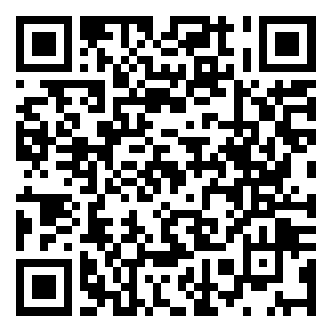
【iPhone 端末の場合】For iPhone
iPhoneで「下記QRコード」を読み取るか、App Storeアプリを開いて「applippli Authenticator」もしくは「アプリップリオーセンティケーター」を検索して、インストールします。 On your iPhone, scan the QR code below, or open the App Store app and search for "applippli Authenticator" to install it.
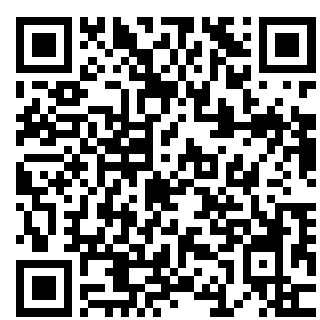
【Android 端末の場合】For Android
アンドロイド端末で「下記QRコード」を読み取るか、Google Play Storeアプリを開いて「applippli」と入力して検索してください。タップしてインストールします。 On your Android device, scan the QR code below, or open the Google Play Store app and search for "applippli Authenticator" to install it.
applippli-keyアプリアイコンをダブルクリックして初期設定を始めますDouble-click the applippli-key App Icon to Start the Initial Setup
- 1 applippli-keyが開くアプリアイコンを管理者からメール等でもらってください。 Ask your administrator to send you the app icon that launches applippli-key (by email or another method).
- 2 そのアプリアイコンをデスクトップに貼り付けてください。 Paste that app icon onto your desktop.
- 3 デスクトップ上のapplippli-keyアプリアイコンをダブルクリックして初期設定を始めます。 Double-click the applippli-key app icon on your desktop to start the initial setup.
「PCで操作」緊急ログオンの設定(On PC) Emergency Logon Setup
緊急ログオンは、スマートフォンを忘れた場合などに一時的に「二段階認証」を解除して、Windows パスワードを使用してログインできる仕組みです。 Emergency Logon allows you to temporarily disable two-factor authentication and log in with your Windows password — for example, when you have forgotten your smartphone.
- 1
ここは重要ですので忘れないでください(applippli-keyを開いていつでも変更できます)。
※ 半角英数字のみで入力してください。 This is important — please don't forget it (you can change it anytime by opening applippli-key).
※ Use half-width alphanumeric characters only. -
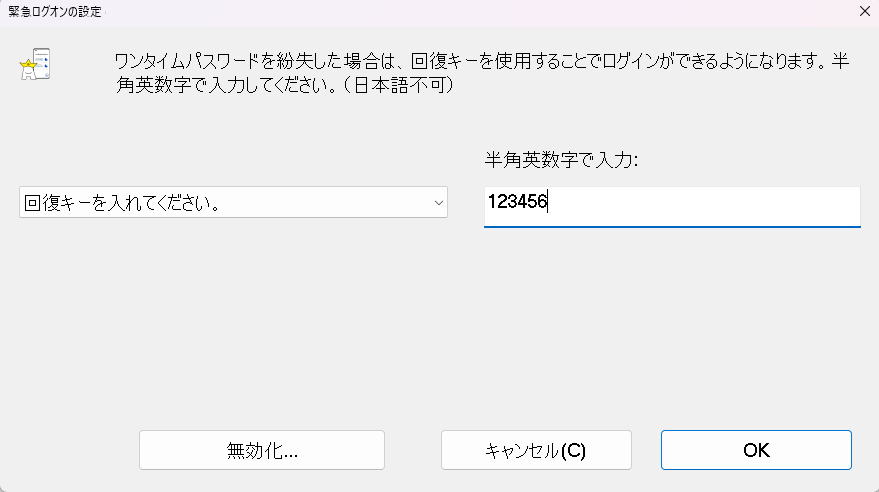
- 2 入力完了後、[OK] をクリックします。 After entering your answer, click [OK].
「PCで操作」ワンタイムパスワードの設定(On PC) OTP Setup
- 1 [ワンタイムパスワードの設定] をクリックします。 Click [OTP Setup].
-
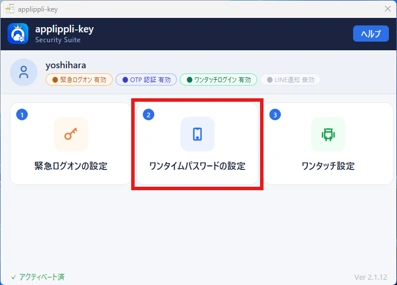
- 2
「PCで操作」「スマホで操作」QRコード表示 をクリックします。ブラウザが起動して QR コードが表示されます。表示された QR コードをスマホのapplippli Authenticatorアプリを開いて、上部の「+」をタップしQRコードをスキャンしてください。
※ スマートフォンの「カメラアプリ」では読み取りできません。 "On PC" / "On smartphone" Click QR Code Display. A browser window will open displaying a QR code. Open the applippli Authenticator app on your smartphone, tap "+" at the top, and scan the displayed QR code.
※ The device's default camera cannot be used to scan. -
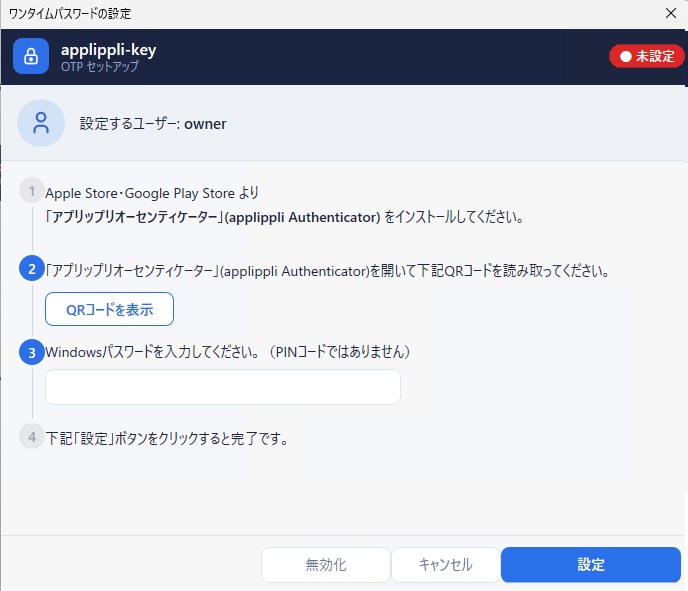
- 3 通常 PC にログインするときの Windows パスワードを入力します。入力後、[設定]ボタン をクリックして設定を完了します。 Enter your Windows login password, then click the [Set] button to complete setup.
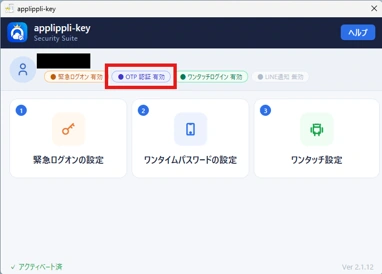
- 4 ワンタイムパスワード設定が完了すると、OTP 認証有効のバッジが表示されます。 Once OTP setup is complete, the OTP authentication enabled badge will appear.
-
「PCで操作」ワンタッチログインの設定(On PC) One-Touch Login Setup
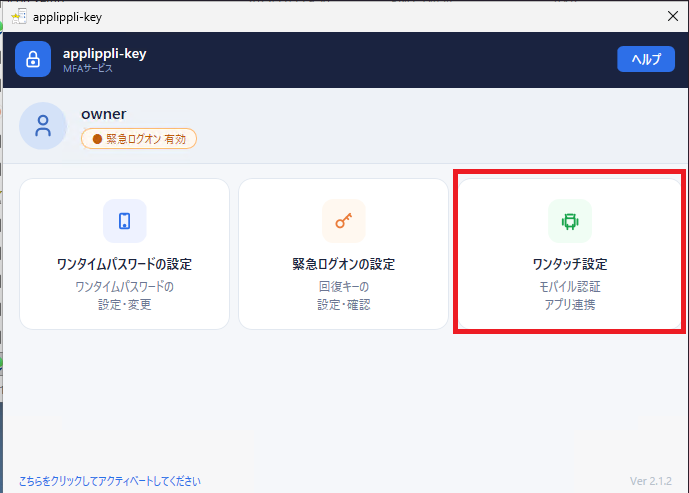
- 1 続いて 「ワンタッチログイン設定」 をクリックします。 Next, click "One-Touch Login Setup."
-
- 2 Windows パスワードを入力します。 Enter your Windows password.
-
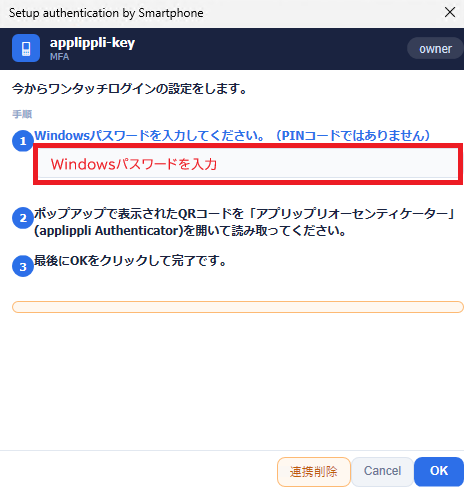
- 3 ペアリング用の QR コードが表示されます。スマホのapplippli authenticator アプリを開いて上部の「+」をタップし、QR コードを読み取ります。 A pairing QR code will appear. Open the applippli authenticator app on your smartphone, tap "+" at the top, and scan the QR code.
- 4 スマートフォンアプリ側でペアリングが完了すると、PC画面に 「スマートフォンが接続されました」 と表示されます。 Once pairing is complete in the smartphone app, your PC screen will show "Smartphone connected."
LINE通知設定を行いますConfigure LINE Notifications
LINE 通知とはAbout LINE Notification
不正ログインおよび脅威を検知した場合、あなたの LINE へ即時通知します。 When an unauthorized login attempt or threat is detected, an instant notification is sent to your LINE.
PC: DESKTOP-OWNER
IP: 91.202.233.79
通知パターン一覧Notification Patterns
| 通知種別Type | 通知内容Message Content | 緊急度Severity |
|---|---|---|
| 🚨 ネットワーク不正アクセスNetwork Intrusion | 送信元IP・PC名・検知時刻を通知Notifies source IP, PC name, and detection time | 高High |
| 🔐 ログイン失敗多発Brute Force | 5分間に10回以上の失敗を検知した際に通知Triggered when 10+ failures occur in 5 minutes | 高High |
| 🦠 ランサムウェア検知Ransomware | ランサムウェア特有の挙動(ファイル大量変更・シャドウコピー削除等)を検知Detects ransomware behaviors (mass file changes, shadow copy deletion, etc.) | 緊急Critical |
| ⚠️ 管理者権限の不正取得Privilege Escalation | 通常アカウントからの管理者権限昇格を検知Detects privilege escalation from standard accounts | 緊急Critical |
| ✅ ログイン成功Login Success | ワンタッチ・OTP によるログイン成功を通知(任意設定)Notifies on successful one-touch/OTP login (optional) | 情報Info |
| 🛡️ IP 自動ブロックAuto IP Block | 攻撃元 IP をファイアウォールで自動ブロックした際に通知Notifies when the attack source IP is automatically blocked by firewall | 中Medium |
- 1 applippli-keyログアイコンをお客様のPCのデスクトップに張り付けます。ダブルクリックしてapplippli-keyログを開いて下さい。ログ画面が表示されます。メニューの「LINE通知設定」をクリックしてください。Paste the applippli-key Log icon onto your PC desktop. Double-click it to open applippli-key Log. The log screen will appear — click "LINE Notification Settings" from the menu.
-
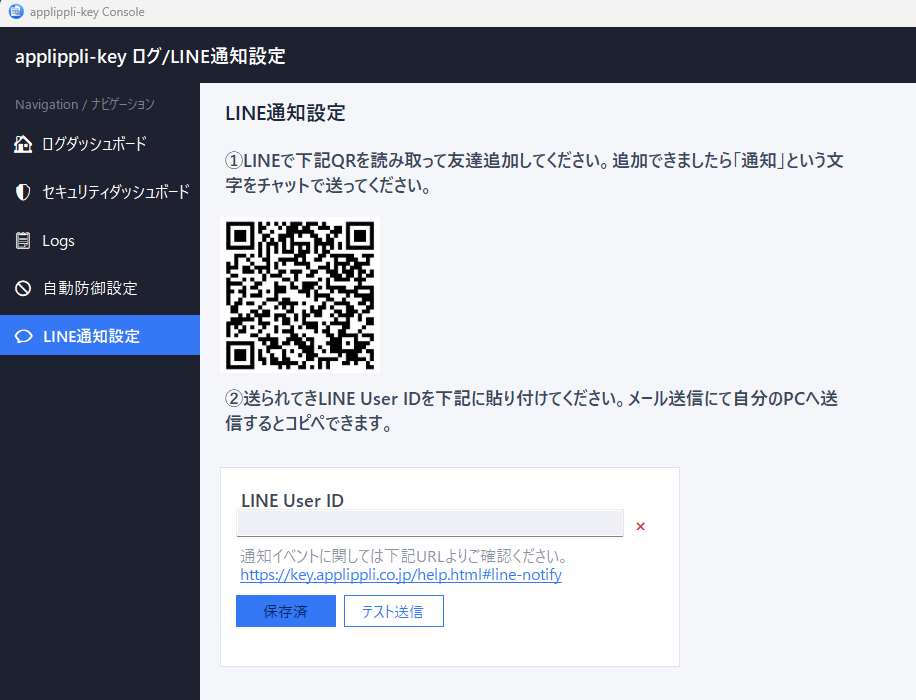
- 2 スマホでLINEを開きます。友達追加まで進み、パソコンの画面(LINE通知設定)に表示されているQRコードを読み取ります。Open LINE on your smartphone. Proceed to "Add Friend," and scan the QR code shown on your PC screen (LINE Notification Settings).
- 3 追加した友達「アプリップリセキュリティ通知」に「通知」とチャットしてください。あなたのLINE User IDが返ってきます。Chat "通知" (notify) to the added friend "applippli Security Notification." Your LINE User ID will be sent back to you.
-
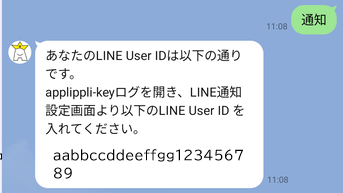
- 4
送られてきたあなたのLINE User IDを画面のLINE User ID欄に張り付けてください。
このチャットをコピーして自分宛てにメールすると、簡単にPC上でコピー貼り付けができます。Paste your received LINE User ID into the LINE User ID field on the screen.
Copying this chat and emailing it to yourself makes it easy to copy and paste on your PC. -
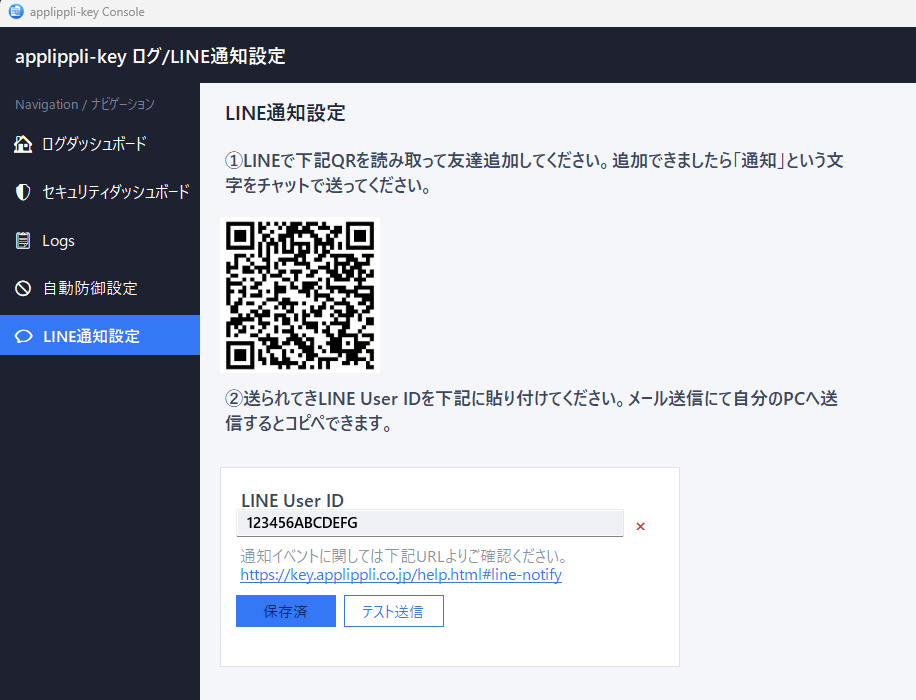
- 5 コピー貼り付けが終わりましたら、保存ボタンをクリックしてください。その右横の「テスト送信」をクリックしてテスト通知があなたのLINEに送られてくることをご確認ください。Once you have copied and pasted it, click the Save button. Then click "Send Test" next to it and confirm that a test notification is sent to your LINE.
-
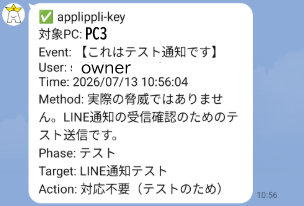
アプリップリキー画面を閉じます。いつもお使いの業務ソフト(アプリップリクラウド)が開いていたら閉じてください。下記の手順でワンタッチログインができるかお試しください。 Setup is now complete.
Close the applippli-key window. If your usual business software (applippli Cloud) is open, close it as well. Then follow the steps below to try a one-touch login.
ログインが簡単になりますLogging In Becomes Simple
ワンタッチログインOne-Touch Login
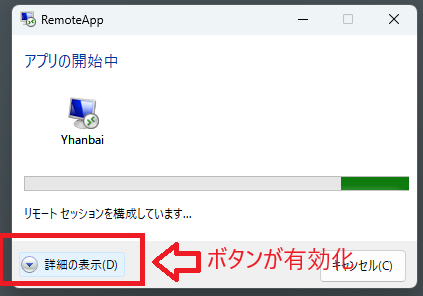
今まで通り、お使いのソフトのアプリアイコンをダブルクリック後、「詳細の表示」ボタンが有効化になったタイミングでスマホのapplippli Authenticatorを開いてワンタッチログインできます。 As before, double-click the app icon of the software you use; once the "Show details" button becomes enabled, open applippli Authenticator on your smartphone and log in with one touch.
ワンタイムパスワードログインOne-Time Password Login
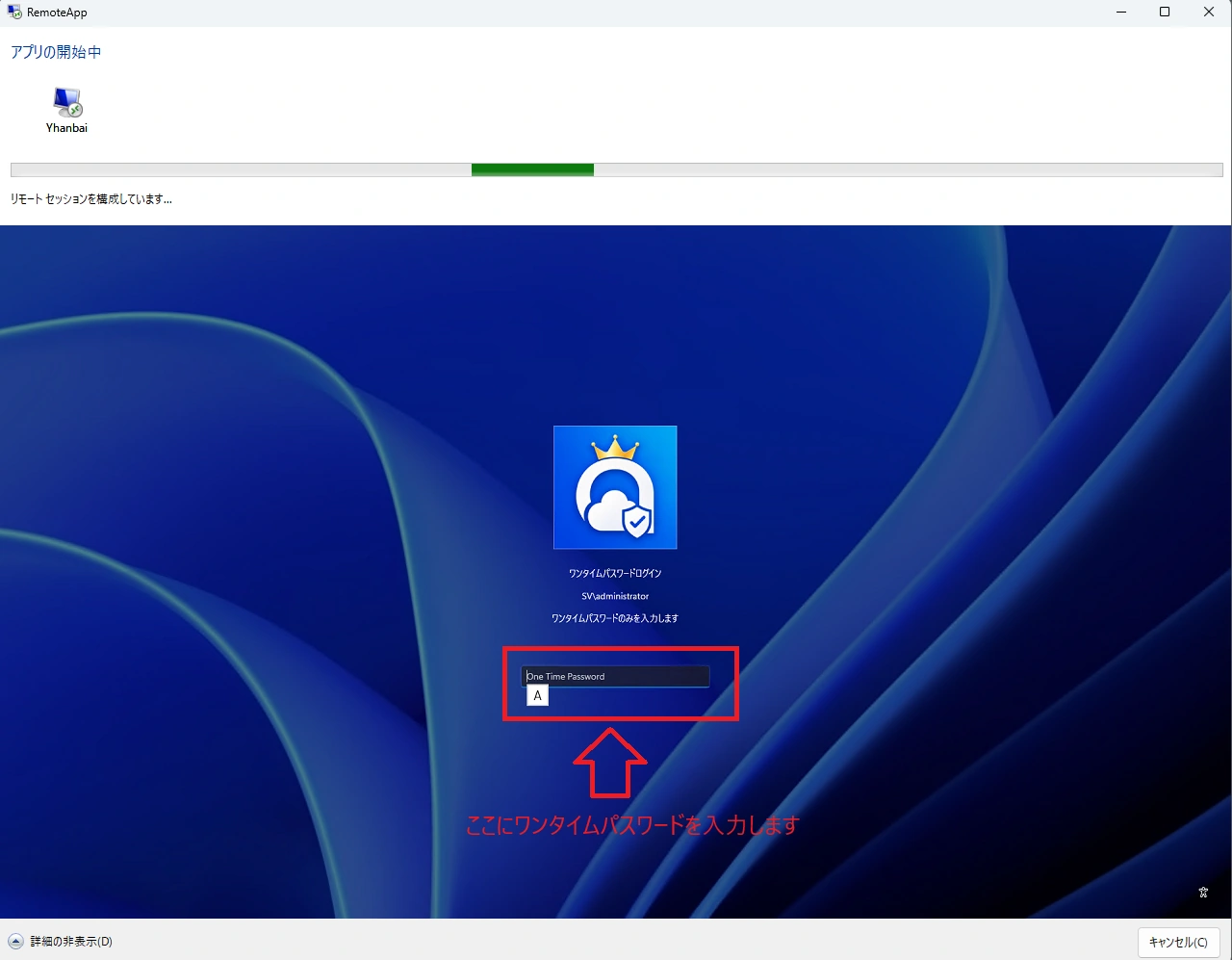
今まで通り、お使いのソフトのアプリアイコンをダブルクリック後、「詳細の表示」をクリックするとワンタイムパスワードを入力する画面が表示されます。PCがインターネットに接続できていない場合は、ワンタッチログインは使えませんので、ワンタイムパスワードの入力でログインします。 As before, double-click the app icon of the software you use, then click "Show details" to display the one-time password entry screen. If your PC has no internet connection, one-touch login is unavailable, so log in by entering the one-time password.
緊急ログオンの使用方法Using Emergency Logon
「スマートフォンを忘れた」「無くした」「故障した」のときにログインするためのものです。 Use this when you have forgotten, lost, or broken your smartphone, and need to log in.
- 1 お使いのソフトのアプリアイコンをダブルクリック後、「詳細の表示」をクリックするとワンタイムパスワードを入力する画面が表示されます。下記の [緊急ログオン] をクリックします。 Double-click the app icon of the software you use, then click "Show details" to display the one-time password entry screen. Then click [Emergency Logon] shown below.
-
 ワンタイムパスワードログイン×××.com/userワンタイムパスワードのみを入力します緊急ログオンOne Time Password
 - 2 アプリップリクラウドのユーザー名を入力し、[次へ] をクリックします。 Enter your applippli Cloud user name and click [Next].
-
ワンタイムパスワードログイン×××.com/userワンタイムパスワードのみを入力します緊急ログオンOne Time Password下記の質問に対して正しい答えの入力を 100回まで試すことができます。回復キーの設定で入力した文字(英数字)を入力してください。ユーザー名:ownerキャンセル(C)次へ
- 3
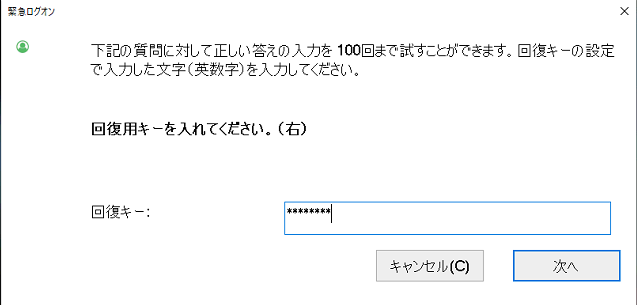
回復キーを入力し、[次へ] をクリックします。
※ 半角英数字のみで入力してください。 Enter your recovery key, then click [Next].
※ Use half-width alphanumeric characters only. -
- 4 処理完了のメッセージが表示されたら [OK] で閉じます。 When the completion message appears, click [OK] to close it.
-
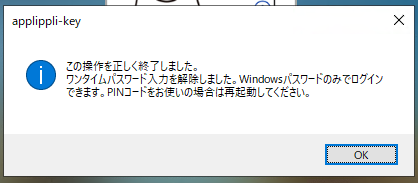
- 5 アプリップリクラウドログイン用パスワードでログインできるようになります。 You will now be able to log in with your applippli Cloud login password.
-
user1パスワード→
自動 IP ブロックAutomatic IP Blocking
「自動防御設定」タブで有効にすると、ネットワーク不正アクセスを検知した送信元 IP を Windows ファイアウォールで自動ブロックします。 When enabled in the "Auto Block Settings" tab, the source IP of detected network intrusion attempts is automatically blocked by Windows Firewall.
| 設定項目Setting | 説明Description |
|---|---|
| ブロック対象Block Target | 検知した IP の /24 サブネット単位でブロック(IP 変更による回避に対応)Blocks the /24 subnet of the detected IP (to counter evasion via IP rotation) |
| ブロック期間Block Duration | デフォルト 24 時間(1〜720 時間で設定可)または無期限。期限切れルールは 30 分おきに自動削除。Default 24 hours (configurable from 1–720 hours) or permanent. Expired rules are automatically removed every 30 minutes. |
| 除外 IP レンジExcluded IP Ranges | 社内ネットワーク(10.x / 172.16.x / 192.168.x 等)はデフォルトで除外。CIDR 形式で追加設定可。Internal networks (10.x / 172.16.x / 192.168.x etc.) are excluded by default. Additional ranges can be added in CIDR notation. |
| 手動解除Manual Unblock | 「自動防御設定」タブのリストから「今すぐ解除」ボタンで即時解除可。Click "Unblock Now" in the list on the "Auto Block Settings" tab to unblock immediately. |
ログの色分けLog Color Coding
ログ イベント早見表Log Event Quick Reference
ログ一覧の各フィールドに表示されるコードの意味と、対応が必要なケースをまとめています。 Quick reference for codes shown in each log field and when action is required.
| 表示名Display Name | 内容Description |
|---|---|
| 2段階認証ログオン2-Step Auth Logon | MFA によるログオンLogon via MFA |
| 2段階認証ロック解除2-Step Auth Unlock | MFA による画面ロック解除Screen unlock via MFA |
| 緊急ログオンEmergency Logon | 緊急コードを使用したログオンLogon using emergency code |
| リモートデスクトップ接続Remote Desktop | RDP 経由のログオンLogon via Remote Desktop Protocol |
| バージョン通知Version Info | クライアントのバージョン確認ログ。バージョン欄に番号を表示。Client version check log. Version number shown in the version column. |
| 脅威検知 〈プロセス名〉Threat — 〈process name〉 | プロセス監視・コマンドライン監視・サービス偽装・RDP有効化などの検知イベントDetection from process monitoring, command-line monitoring, service masquerading, or RDP enablement |
| ネットワーク不正アクセスNetwork Intrusion | ネットワーク経由のログオン連続失敗(5分間に10回以上)を検知Network logon burst failure detected (10+ within 5 minutes) |
| 表示Display | 要対応Action | 意味Meaning |
|---|---|---|
| 成功Success | — | 認証が正常に完了したAuthentication completed successfully |
| 失敗Failure | 継続時は要確認Check if repeated | パスワードまたは OTP が不一致Password or OTP mismatch |
| OTP間違いOTP Error | 連続時は要確認Check if repeated | ワンタイムパスワードが不正解。5分間に10回以上でバースト検知・LINE通知。One-time password incorrect. Burst detection and LINE notification triggered at 10+ within 5 minutes. |
| BYPASS | 要確認Review | MFA をバイパスしてログオン。意図しない場合は原因を調査してください。Logon bypassed MFA. Investigate if unintentional. |
| 脅威Threat | 即対応Immediate | プロセス偽装・不審コマンド・ネットワーク攻撃などの脅威を検知。備考欄に詳細と推奨対応を記録。Threat detected (process masquerade, suspicious command, network attack, etc.). Details and recommended action recorded in the notes column. |
| 情報Info | — | 参考情報の記録(例:RDP接続元クライアント名)Informational record (e.g. RDP client name) |
| SKIP | — | バージョン確認をスキップ(オフライン等)Version check skipped (offline, etc.) |
| 表示Display | 説明Description |
|---|---|
| 手入力Manual entry | 認証アプリに表示された 6 桁コードを手入力6-digit code from the authenticator app entered manually |
| ワンタッチOne-touch | スマートフォンアプリでのワンタッチ承認One-touch approval via smartphone app |
| RDP接続RDP | リモートデスクトップ経由の接続Connection via Remote Desktop Protocol |
| コンソール接続Console | コンソールセッション経由の接続Connection via console session |